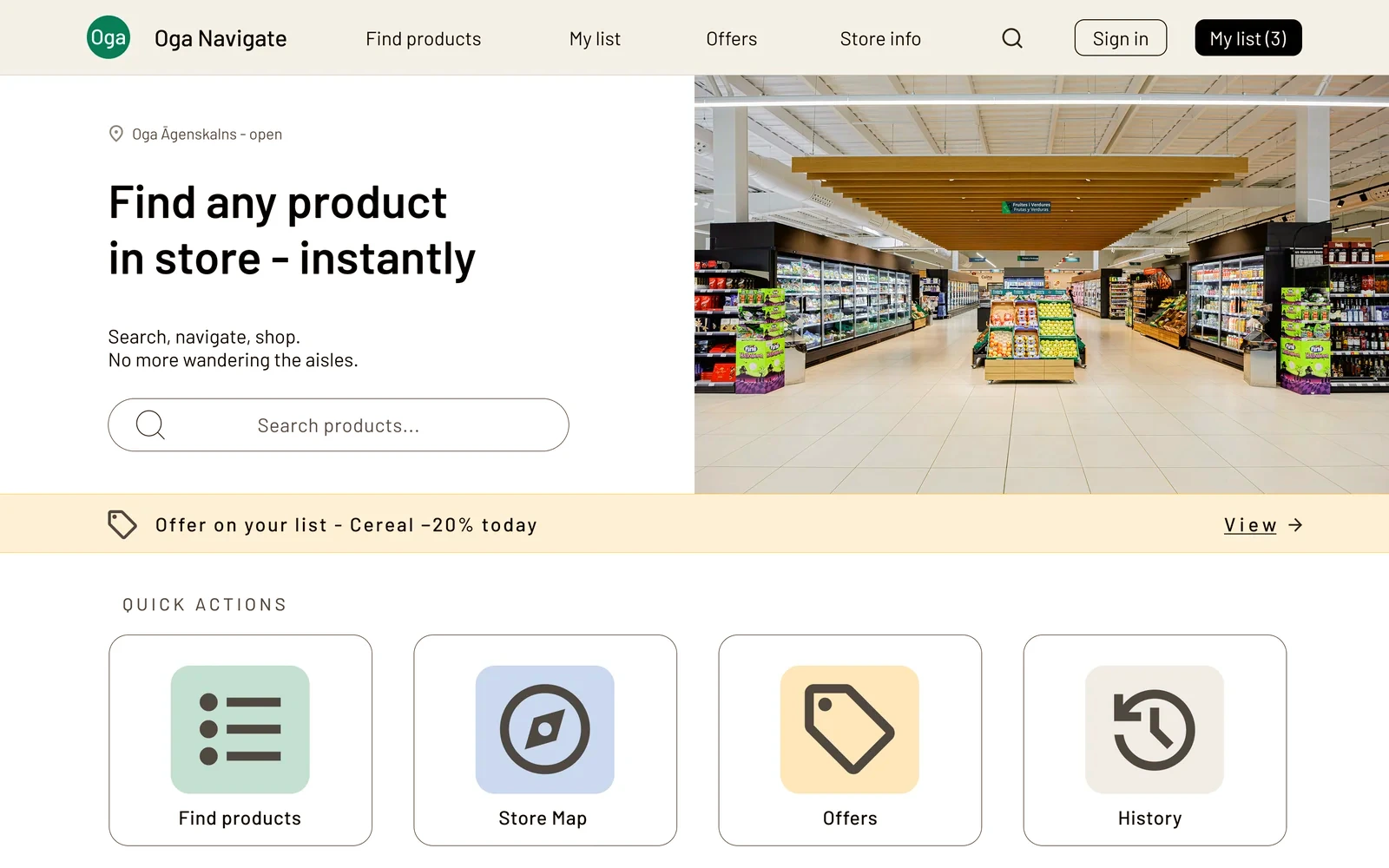
The same Oga Navigate in-store navigation, only in a browser and with nothing to download. A product and its aisle can be found at home, not while standing in front of the shelf. The page is drawn for two widths - a desktop view and a mobile one.
ROLEDesign and research - one person
DURATIONThree months
METHODSUser journey map, sitemap, usability study
STATUSPrototype - a concept, not shipped
CONTEXTGoogle UX Design Professional Certificate
oga-navigate.lv
1440px / desktop
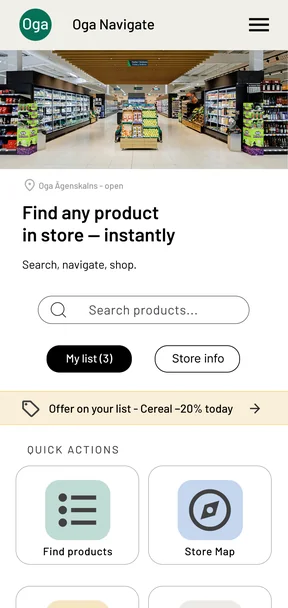
402px / mobile
PROJECT OVERVIEW
THE PROBLEM
None of the Latvian grocery sites I looked at show which aisle a product actually sits in. Opening hours, address and store layout are scattered across different sites or not online at all. A mobile app solves this only for the people willing to install one.
THE GOAL
A site where any product can be found together with its aisle, from any device and without a download - including beforehand, at home on a large screen, before setting off for the store.
MY ROLE
Carrying the research into a new context, the sitemap, sketching on paper and in Figma at both widths at once. High-fidelity mockups, prototype and a usability study.
2widths for one design
1fix from the study
5.3:1brand green on background
WHAT THE RESEARCH CHANGED
The research is the same one behind the mobile app: two interviews with Riga shoppers - a working parent and a pensioner. Reading those same answers again with a browser in mind surfaced a third use case the app does not cover at all. The preparation happens at home, on a large screen, before anyone leaves.
That flipped my assumption about who the weakest user is. The pensioner rarely picks up a smartphone, but at a desktop computer is completely at ease. For that shopper the site is not a smaller version of the app - it is the only version they will ever use.
>
Preparation starts at home, not in the store. People want to build the list in advance and without pressure, so the list screen had to work with no store map beside it, using a keyboard and a mouse.
>
The information has to sit in one place. The store page on the site brings opening hours, the address and the aisle layout into one view. That is the part the app does not do any better.
>
The download itself is a barrier. A site opens from a link and without an account. That is what separates this project from the app most clearly.
ONE DESIGN, TWO WIDTHS
Every screen was drawn at both widths from the start, rather than desktop first and squeezing afterwards. The two widths are not one layout in two sizes - they are two different situations in which a person opens the same page, and in each of them something else matters most.
>
Desktop browses. Here the person is at home with no hurry, so filters, the product list and the store map can all sit in one view.
>
Mobile executes. Mobile gets opened inside the store, with a basket in one hand. Everything collapses into one column: the navigation folds into a burger, the photo moves above the headline, and below the search field two buttons are left - the list and the store info. The rest moves further down.
WIDTHS
// one screen, two widths - what changes is the order, not the scale
FROM PAPER TO SCREEN
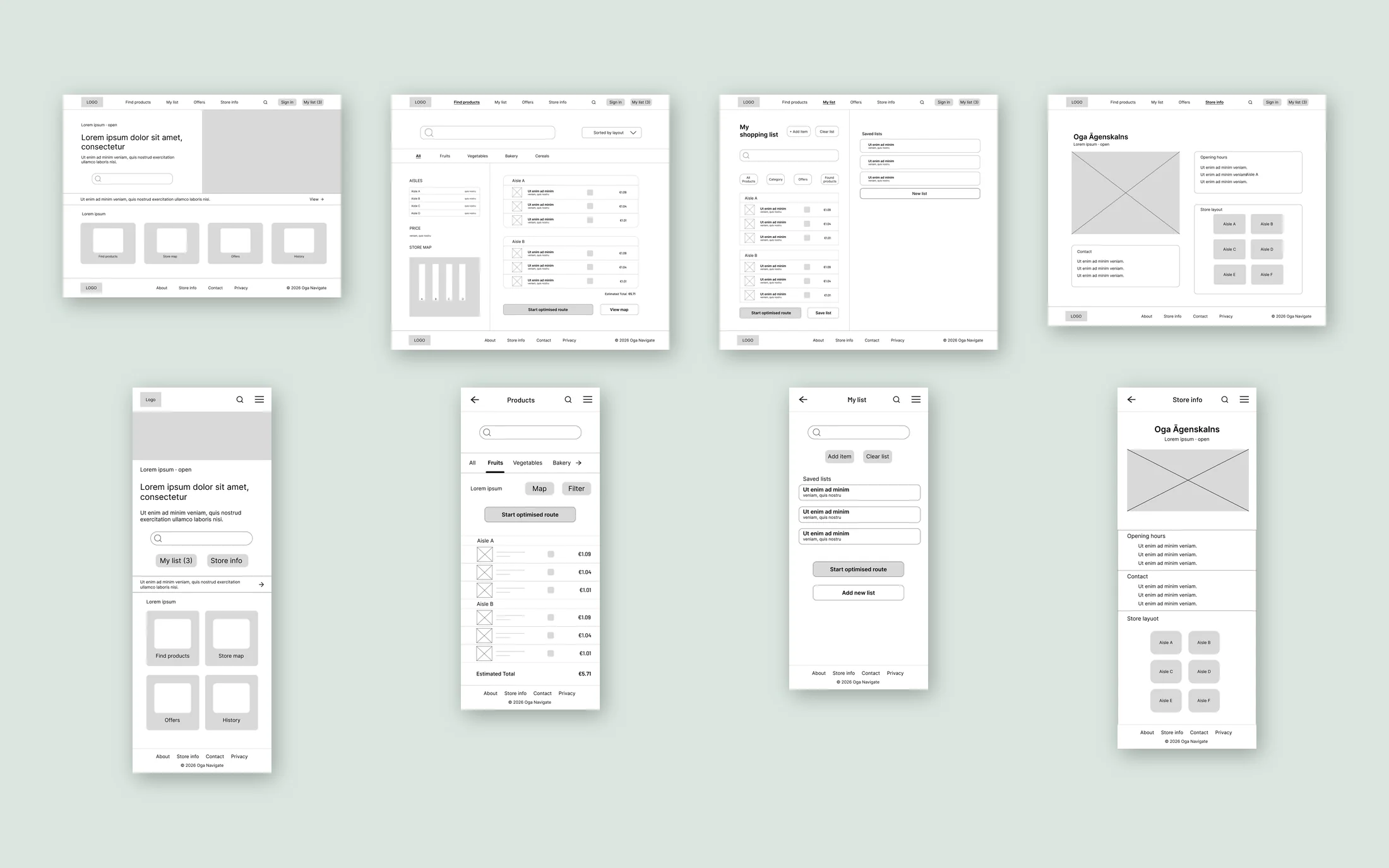
Before Figma there was paper, and before any layout there was the sitemap: how many steps it takes to get from the home page to a product, to the list, and to the route. I drew every screen in the wide and the narrow variant at the same time, because the narrow one is where you see what falls off first.
>
The search field is visible without scrolling. People arrive with an intent already formed, so search can be started right away - on the home page and on the product page alike. On the product page it sits at the very top; on the home page, just below the headline.
>
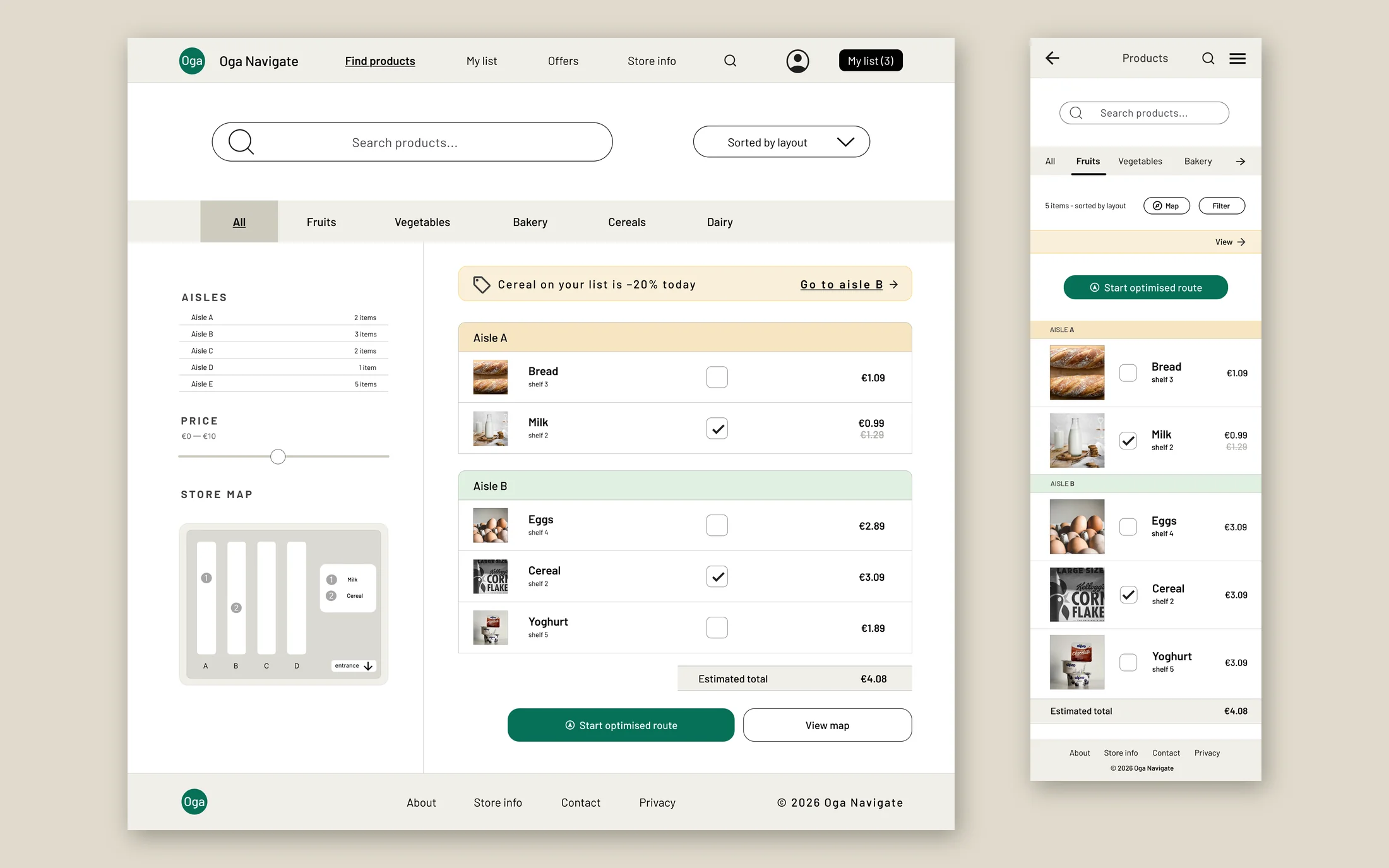
The list is ordered by aisle, not by when items were added. Products gather into groups with the aisle name on top, so the list becomes the route on its own, with no separate planning step.
>
The store gets its own page. Opening hours, contacts and the aisle layout are one view you can send a link to. In the app the same information is tucked away in a menu; on the web it gets a page of its own.
LO-FI
// low-fidelity wireframes - four screens at both widths, before there was any colour
USABILITY STUDY
The study had one question: can a person get from the list to starting a route on their own, without asking what to press. The answer was no, and some of them stopped at the same point.
A button at the end of the list
WHAT PARTICIPANTS DID
On mobile with a longer list, some participants did not find the route button until they scrolled all the way down. A few concluded that this screen had no routing at all.
WHY IT HAPPENED
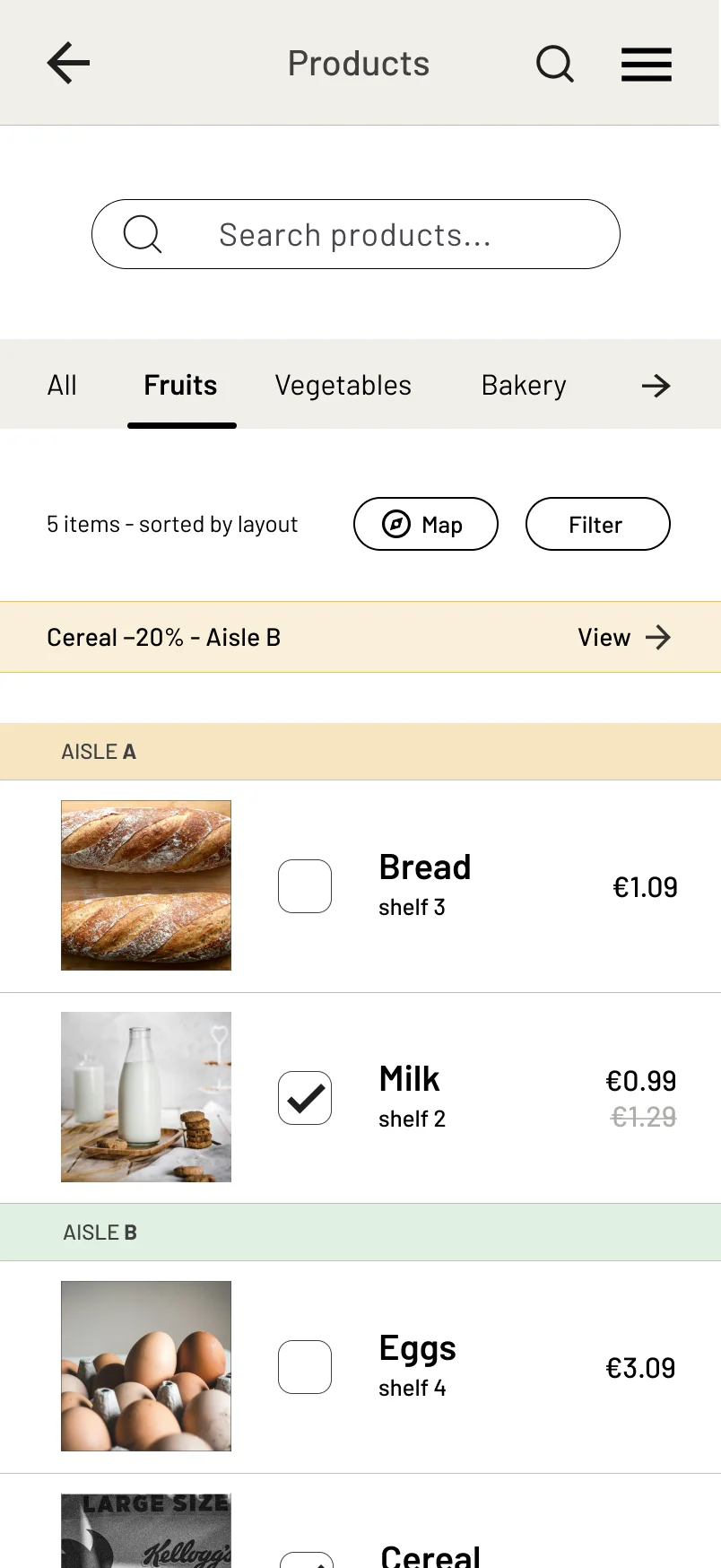
The button sat at the end of the list. List length varies, so the primary action of the screen depended on how many items the person happened to add that day.
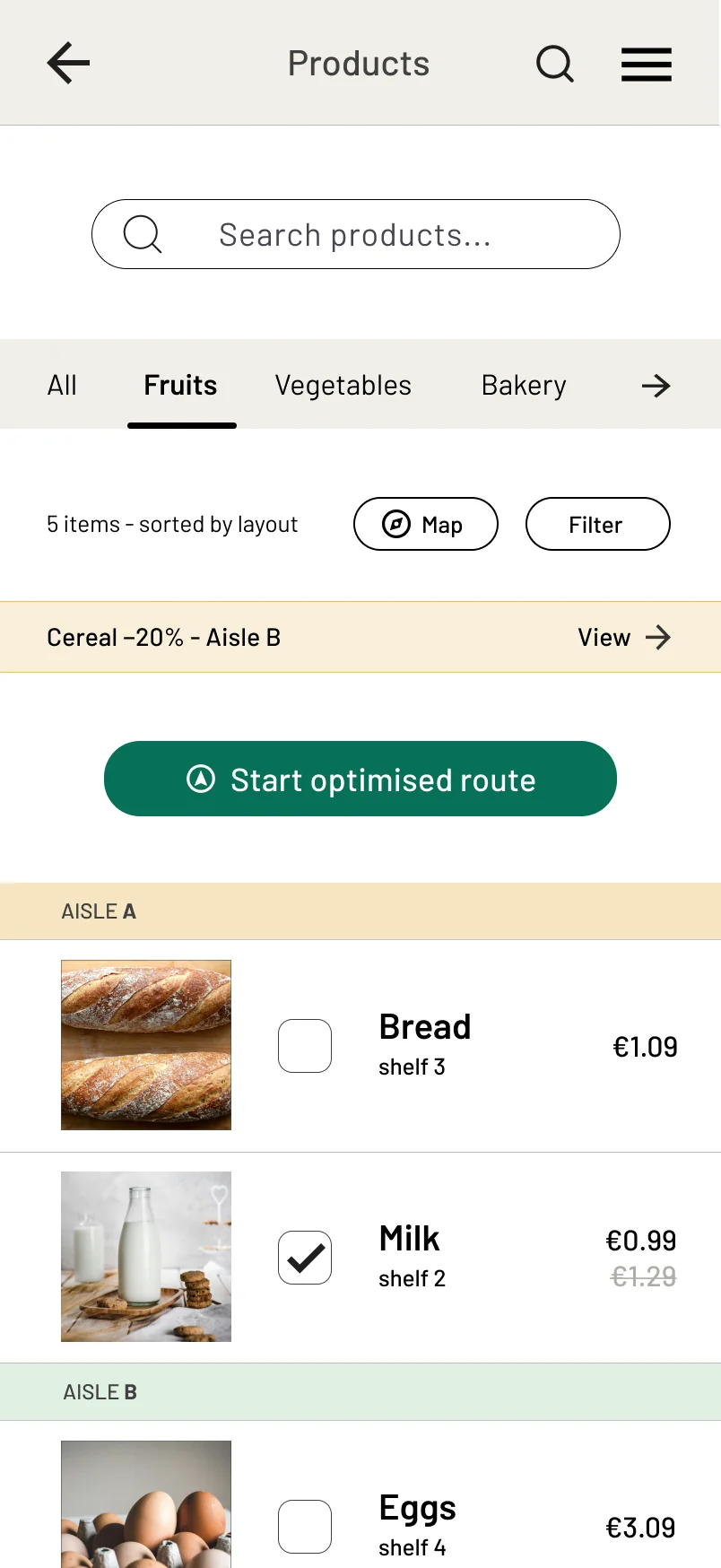
fix: the button moved above the list, directly below the offer strip. It is on screen from the start, and the length of the list no longer decides whether it gets found.
BEFORE
// the button after the total, at the end of the list
AFTER
the same screen, the button above the list
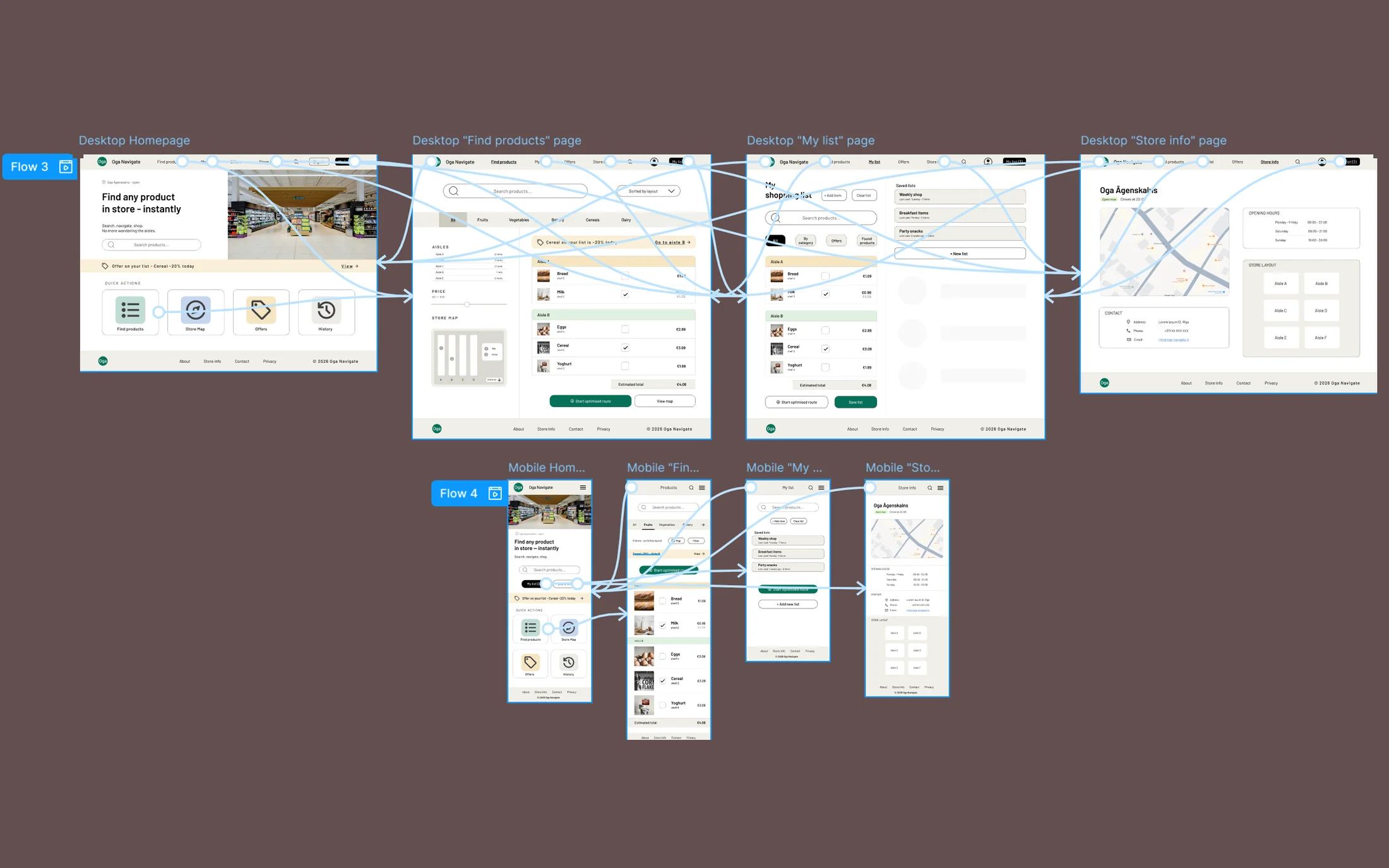
HI-FI
// high-fidelity prototype - the same flow, with the testing changes inside it
ACCESSIBILITY
One of the two people I interviewed is at ease with a computer and rarely picks up a smartphone. If the site does not work for him, nothing does - so accessibility here was a constraint from the start, not a check at the end.
>
Contrast is calculated, not eyeballed. The brand green on warm white gives 5.3:1, white text on that same green gives 6.1:1, and the dark grey body text on the background gives 8.9:1. All three clear the 4.5:1 threshold, and that is why the green is allowed on buttons rather than only on decoration.
>
One typeface, clearly separated sizes. The headline, the product name, the price and the shelf number are four different sizes, and the gap between them is wide enough to read the hierarchy without comparing lines to each other. The smallest is the shelf number - the line an older person stops reading first.
>
Touch targets are larger than AA asks for. The smallest tappable element in the mockups is the 30x30px checkbox, and the primary button is 42px tall. WCAG level AA asks for 24x24 (2.5.8), so both clear it, while the AAA-level 44x44 (2.5.5) is not met. For a mouse pointer that gap is small; for a finger in a store, with a basket in the other hand, it is the difference between hitting the button and missing it.
WHAT I TOOK FROM IT
IMPACT
The site is for the people who would leave the app uninstalled. It offers what none of the Latvian grocery sites I looked at offer: product search with an aisle number, in a browser and without an account.
WHAT I LEARNED
Responsive design is not scaling a screen, it is reconsidering priorities at every width. And the biggest change in this project was one of the smallest: a button that moved one screen higher.